%20copy.png)
Use BeeCastle in Slack
Share a BeeCastle link in Slack and act on it there: finish an action, add a note, or raise a point for the next meeting.
Your team already talks about clients in Slack. With BeeCastle in Slack, a BeeCastle link you share brings the record into the conversation, and you can act on it there: finish the action, add a note, or put a point on the next meeting's agenda, without leaving the thread.
Why use it
- Follow up where the conversation is. Share an action with a colleague and mark it done or snooze it from the same thread.
- Capture it while you remember it. Add a note to the company, or raise a point for the next meeting, straight from the message.
- Check before you reply. Show details gives you the company's health, service health, last contact and revenue, in a reply only you can see.
- Everyone sees the same record. The channel sees the name, owner, tier, stage, status and dates, so nobody has to ask which company you mean.
Share a link
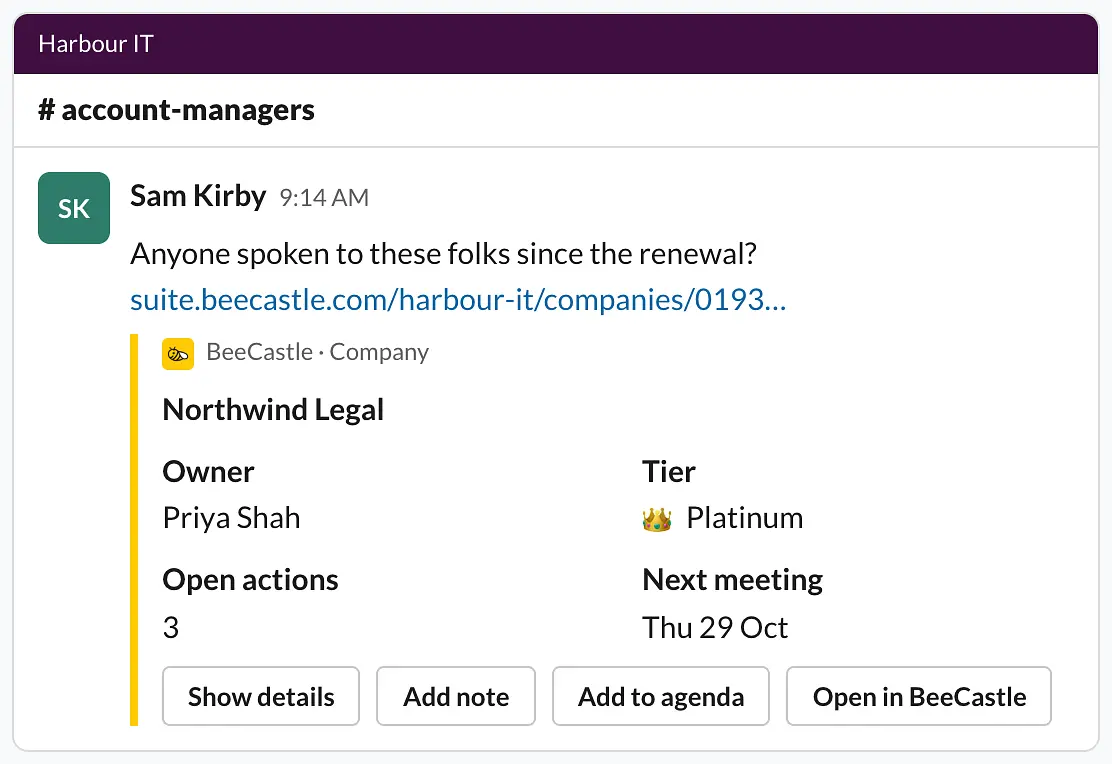
Copy the link of a company, contact, opportunity, action, meeting or note in BeeCastle and paste it into a Slack message. When you send it, Slack shows a preview of the record with buttons underneath.
Act on it in Slack
- Done, Snooze and Reopen on an action. The same rules as My actions apply: the owner, their cover while they are away, or an admin.
- Add note saves a note on the record as you. Tick Raise at the next meeting to put it on the agenda as well.
- Add to agenda adds a point to the company's next meeting. It starts internal; tick Show on the client's agenda to share it with your client.
- Show details replies to you alone, with what you can see in BeeCastle.
- Open in BeeCastle takes you to the record.
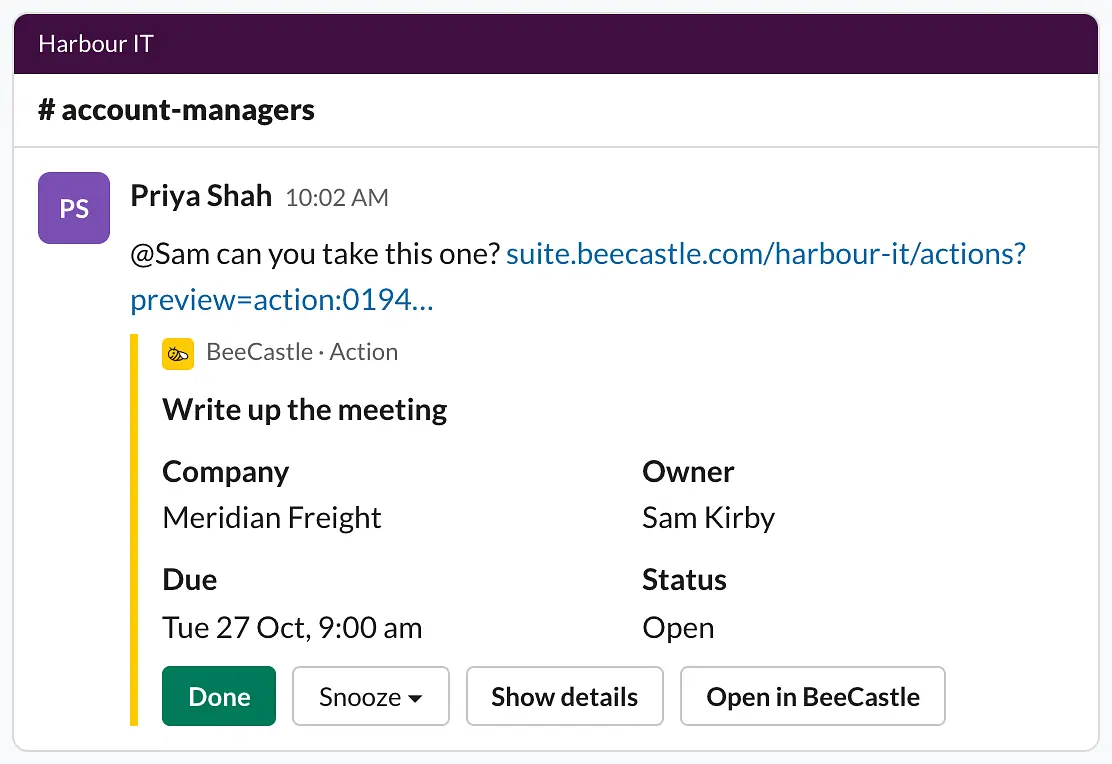
Buttons act as the person who presses them, and the record's history shows the change came from Slack.
Connect yourself
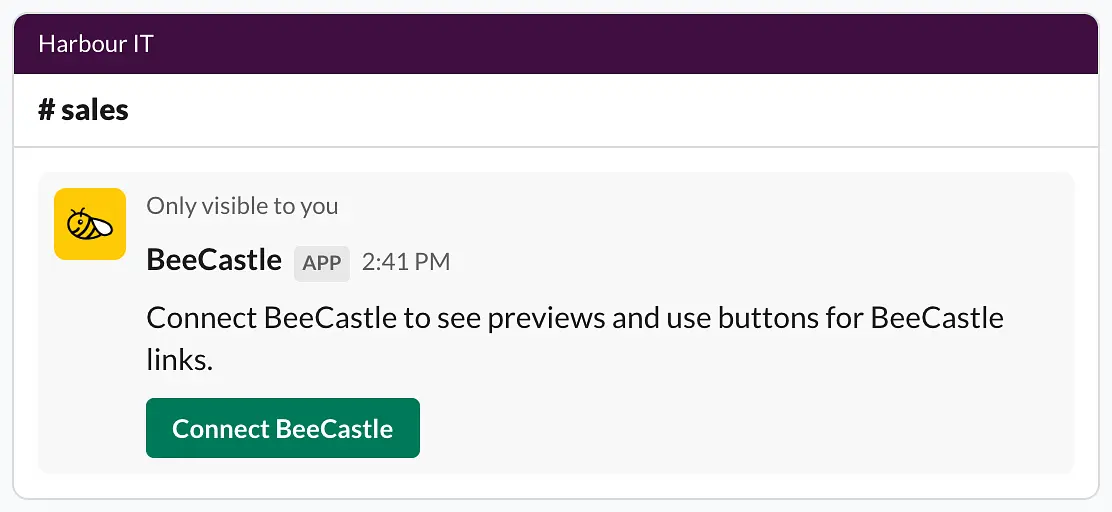
The first time you share a BeeCastle link, Slack shows you a private Connect BeeCastle button. Choose it, sign in to BeeCastle if asked, and choose Connect. Then share the link again to see its preview.
To disconnect, go to Profile > Integrations > Slack and choose Disconnect.
Add Slack to your organisation (owners and admins)
- Go to Settings > Integrations and choose Slack.
- Choose Add Slack and approve the BeeCastle app in Slack.
- Back in BeeCastle, choose what a shared link shows under Link previews (Standard, Name only or Off) and who may connect under Who can connect (All members or Chosen members).
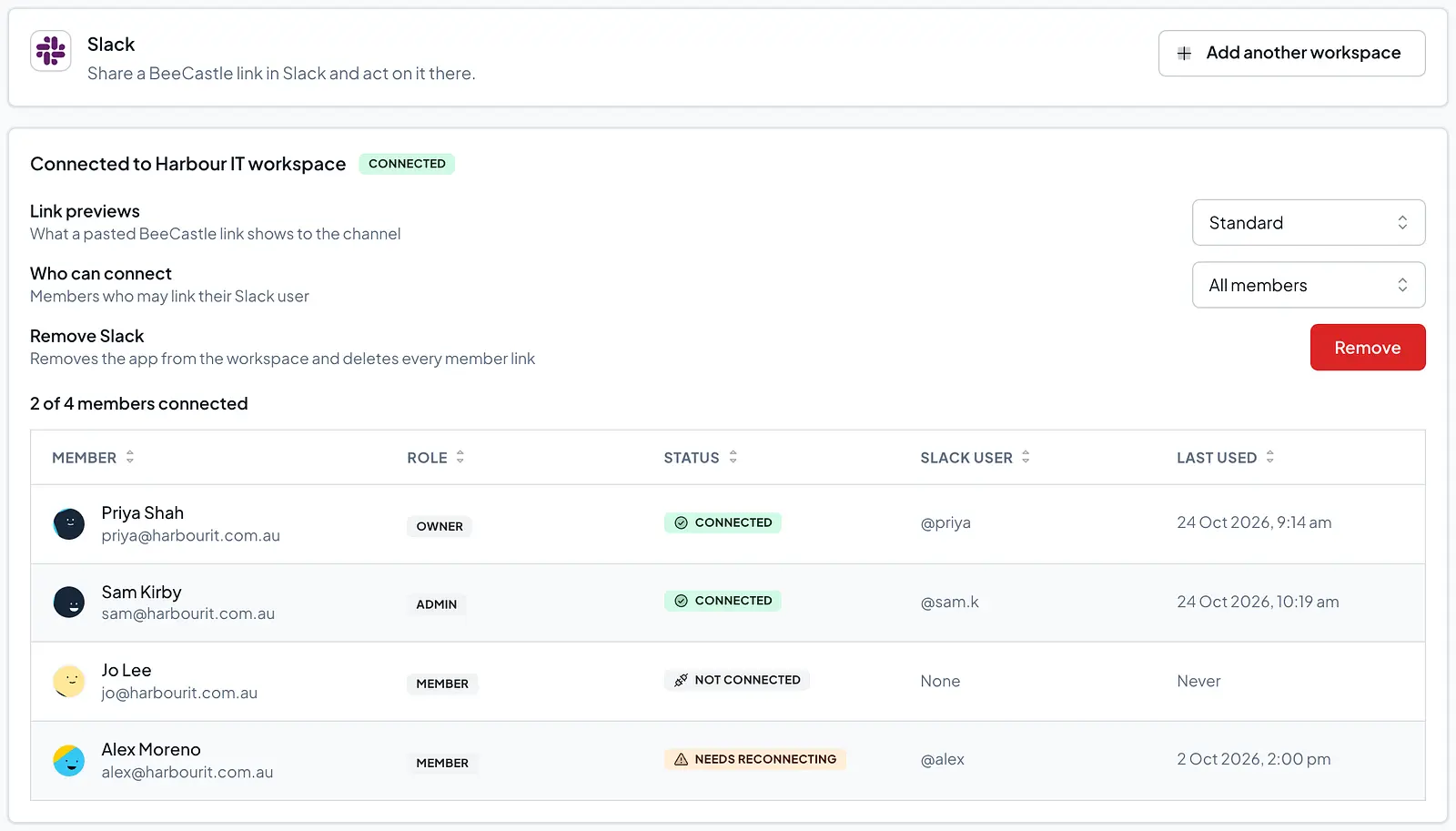
A Slack workspace belongs to one BeeCastle organisation. An organisation can add more than one Slack workspace.
What BeeCastle keeps from Slack
Your Slack workspace's id and name, and the Slack user id of each person who connects. BeeCastle doesn't read your Slack messages or channels. Removing Slack in Settings, or uninstalling the app in Slack, disconnects everyone straight away.
Was this article helpful?
Related articles
Open Opportunities "Next Meeting" and "Stage" filter
How to use the "Next Meeting" column and the "Stage" filter on the Open Opportunities view to quickly review pipeline.
Engage with BeeCastle featuresCustomer Profitability - Set Up & Data
This guide shows you how to set up and sync your data for Customer Profitability
Engage with BeeCastle featuresCreate Meetings from Open Opportunities
Quickly action meetings when you need to and save time
Engage with BeeCastle featuresTrack Your Contracts in BeeCastle
Now you can see all of your contracts in BeeCastle and stay ahead of the game!