%20copy.png)
Use BeeCastle in Microsoft Copilot
Ask Copilot about your clients and act on the answer: who is at risk, what to raise at the next meeting, and add it to the agenda.
If your team works in Microsoft 365, you can ask Copilot about your clients and get answers from BeeCastle: which accounts need attention, what to cover in your next meeting, and what has happened since you last spoke. Copilot can also act for you, such as adding a point to a client's agenda.
Why use it
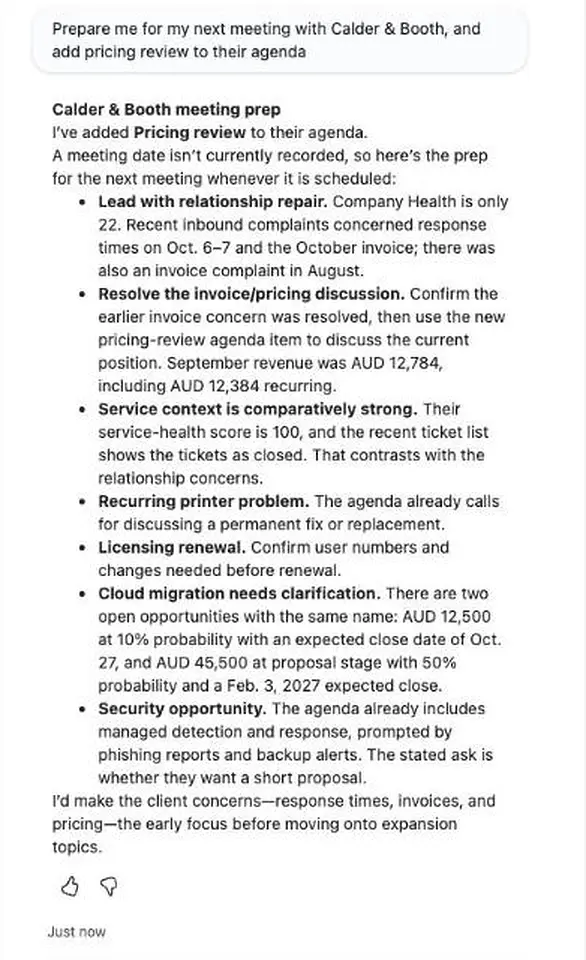
- Prepare on the way to the meeting. Ask "prepare me for my meeting with Calder & Booth" and get their health, recent emails and complaints, open opportunities and what is already on the agenda.
- Know where to spend your time. Ask which of your companies are most at risk, and why.
- Capture it while you remember it. Ask Copilot to add a point to a client's agenda, create a reminder or write a note.
- It only sees what you see. Copilot signs in to BeeCastle as you, in the organisation you choose, with your permissions.
What you need
- Microsoft Copilot Studio, with permission to create an agent in your Power Platform environment.
- A BeeCastle account. An administrator may need to allow you to use BeeCastle MCP (see the end of this article).
Add BeeCastle to your agent
- In Copilot Studio, open your agent (or create one with New agent) and go to Tools.
- Choose Add a tool, then Add new MCP.
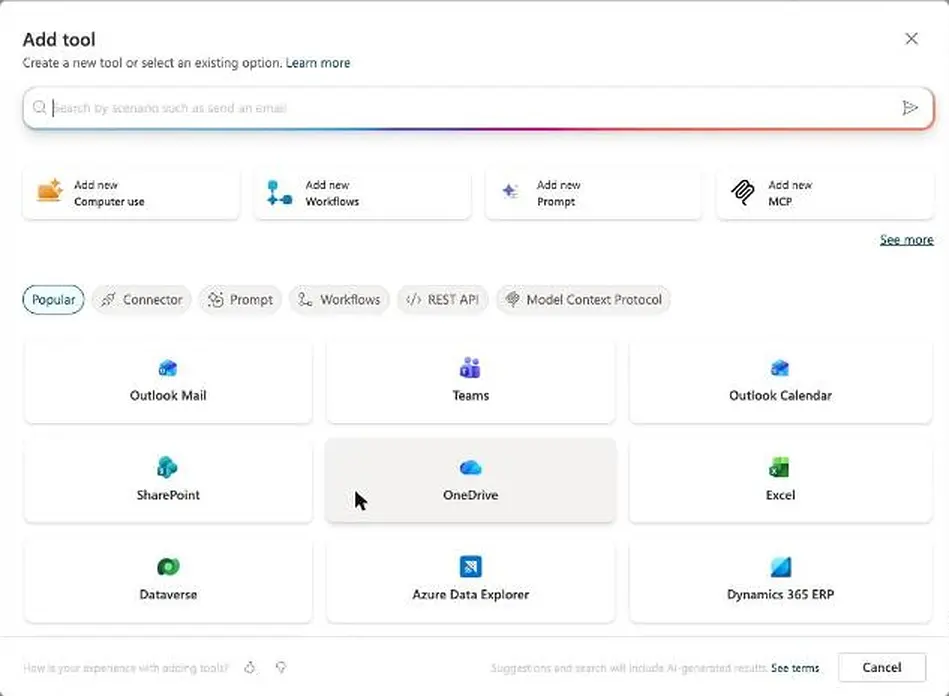
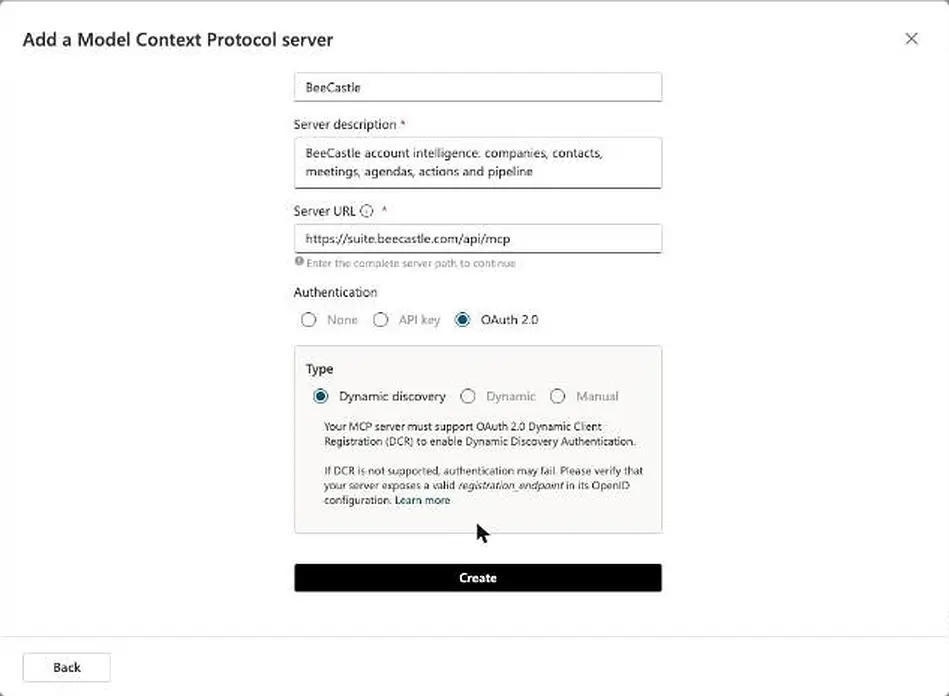
- Fill in the server:
- Server name: BeeCastle
- Server description: for example, BeeCastle account intelligence: companies, contacts, meetings, agendas, actions and pipeline (at least 10 characters)
-
Server URL:
https://suite.beecastle.com/api/mcp - Authentication: OAuth 2.0, type Dynamic discovery
- Choose Create.
Connect your BeeCastle account
- Under Connection, choose Create new connection, then Create. A BeeCastle sign-in window opens.
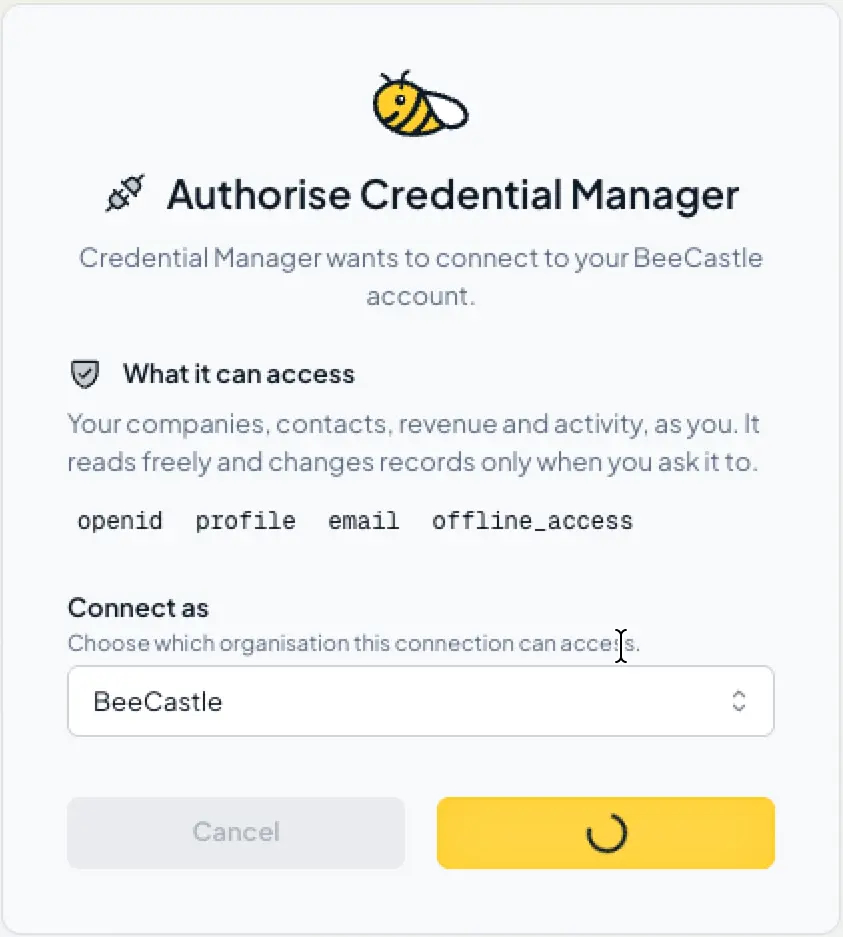
- Sign in to BeeCastle if asked. The consent screen calls Copilot Credential Manager; that is the name Microsoft registers it under.
- Under Connect as, choose your organisation, then Allow access.
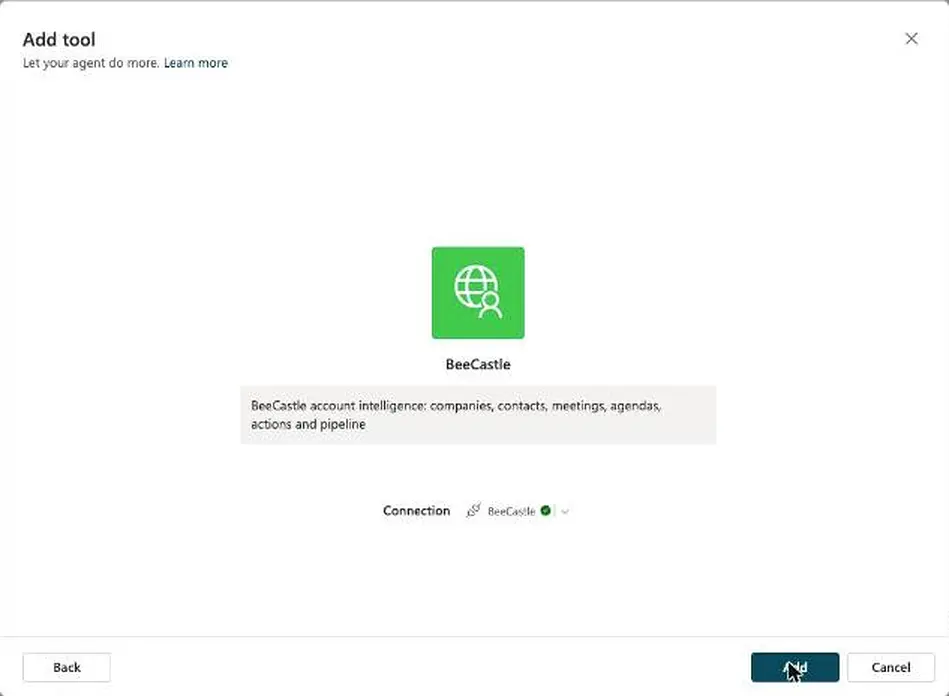
- Back in Copilot Studio the connection shows a green tick. Choose Add.
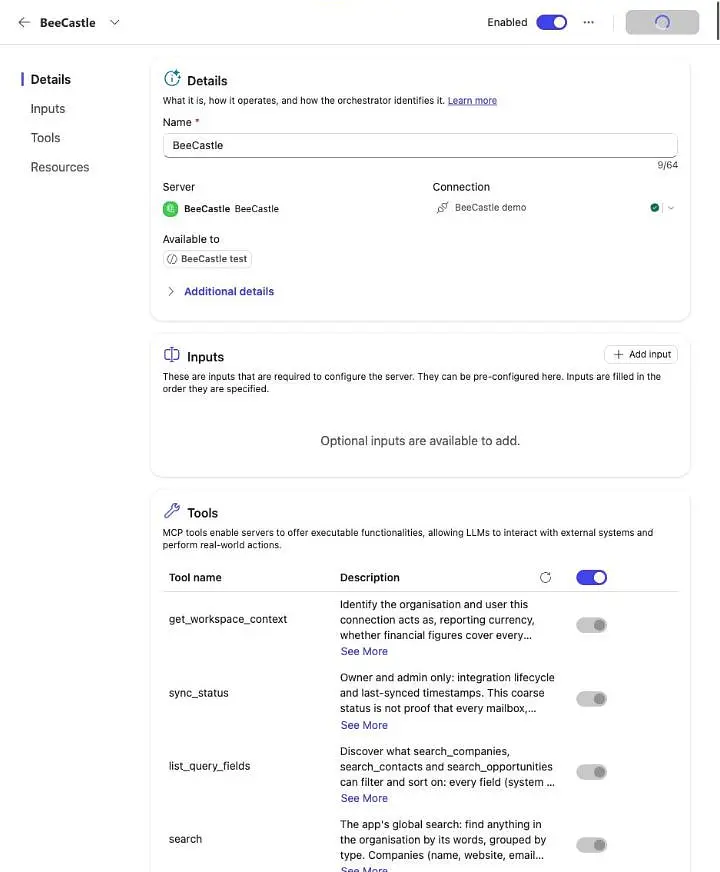
Open the BeeCastle tool to see everything Copilot can now use, such as search, at-risk companies, meetings, agendas and actions.
Let the agent use BeeCastle
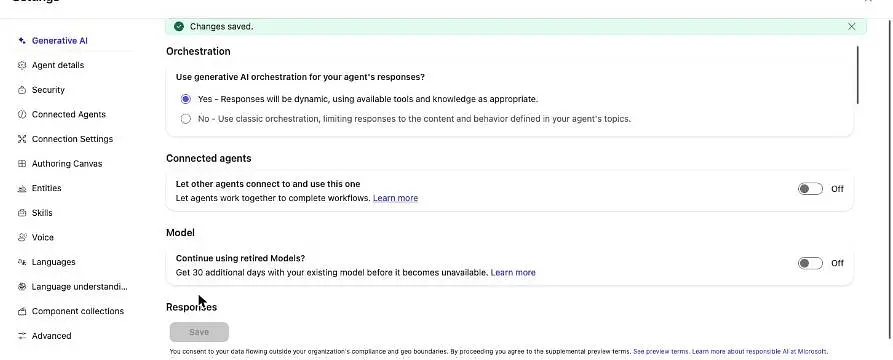
Copilot only calls BeeCastle when the agent uses generative orchestration. Without it, the agent answers "I'm not sure how to help with that".
- Go to Settings > Generative AI.
- Under Orchestration, choose Yes, then Save.
Try it
In Test your agent, start a new test session and ask:
- "Which BeeCastle organisation am I connected to?"
- "Which of my companies are most at risk right now, and why?"
- "Prepare me for my next meeting with [company], and add [topic] to their agenda."
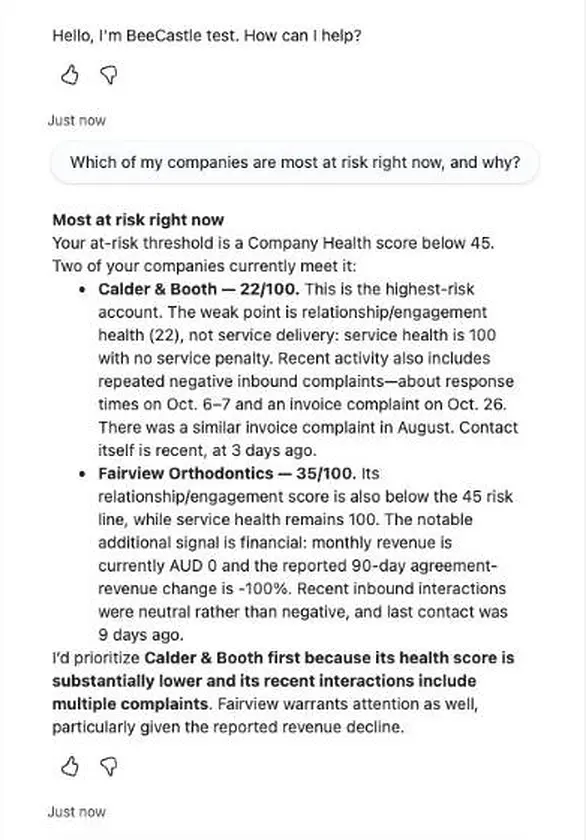
When it answers well, choose Publish and add the agent to Teams or Microsoft 365 Copilot under Channels.
Add the BeeCastle icon (optional)
Copilot shows a plain globe for BeeCastle until you give it our icon. Download the BeeCastle icon (PNG, 512 x 512), then in Power Apps go to Custom connectors, open BeeCastle, choose Edit and upload it as the connector icon.
Choose who can use it (owners and admins)
- Go to Settings > Integrations and choose BeeCastle MCP.
- Under Access, choose All members or Only members you allow, and tick each member who may connect.
Disallowing a member disconnects their assistants at once. Removing BeeCastle MCP disconnects every member's assistants. Administrators never see members' questions.
If it doesn't connect
- "You are not allowed to use BeeCastle MCP here": an administrator needs to allow you (see above).
- 403 Forbidden while creating the server: your Power Platform environment may block custom connectors. Ask your Microsoft 365 administrator to check the environment's data policies.
- The agent never uses BeeCastle: turn on generative orchestration and start a new test session.
Was this article helpful?
Related articles
Open Opportunities "Next Meeting" and "Stage" filter
How to use the "Next Meeting" column and the "Stage" filter on the Open Opportunities view to quickly review pipeline.
Engage with BeeCastle featuresCustomer Profitability - Set Up & Data
This guide shows you how to set up and sync your data for Customer Profitability
Engage with BeeCastle featuresCreate Meetings from Open Opportunities
Quickly action meetings when you need to and save time
Engage with BeeCastle featuresTrack Your Contracts in BeeCastle
Now you can see all of your contracts in BeeCastle and stay ahead of the game!