%20copy.png)
Put your brand on your client pages
Add your logo and brand colour so the meeting pages you share with clients look like yours.
When you share a meeting agenda with a client, the page they open should look like it came from you. Add your logo and brand colour once and every client page your team shares carries them.
Why use it
- Your clients see your business. The page shows your logo, your name and your colour, so the agenda feels like part of your service.
- Set it once. One logo and one colour cover every client page.
- Easy to read in any colour. Text on your colour adjusts itself, so a light or dark brand colour still reads well.
Add your logo and colour (owners and admins)
- Go to Settings > Organisation.
- Choose the logo to upload yours.
- Under Brand colour, pick a colour or type its code, for example
#0f766e. - Choose Save.
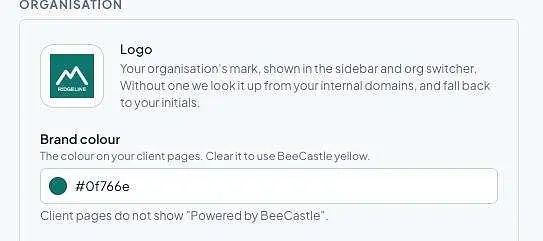
To go back to BeeCastle yellow, clear the colour and save.
What your client sees
The client page for a meeting shows your logo and name beside your client's, with your colour on the page. The browser tab shows your name and logo too.
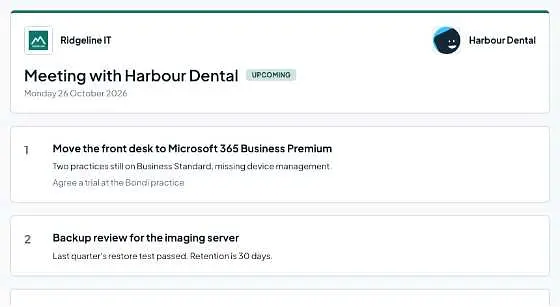
Powered by BeeCastle
On the Starter plan, client pages show a small "Powered by BeeCastle" at the bottom. Growth, Power and Enterprise remove it, so the page carries your brand alone. You can see your plan under Settings > Billing.
Was this article helpful?
Related articles
Open Opportunities "Next Meeting" and "Stage" filter
How to use the "Next Meeting" column and the "Stage" filter on the Open Opportunities view to quickly review pipeline.
Engage with BeeCastle featuresCustomer Profitability - Set Up & Data
This guide shows you how to set up and sync your data for Customer Profitability
Engage with BeeCastle featuresCreate Meetings from Open Opportunities
Quickly action meetings when you need to and save time
Engage with BeeCastle featuresTrack Your Contracts in BeeCastle
Now you can see all of your contracts in BeeCastle and stay ahead of the game!