%20copy.png)
Integrating BeeCastle with AutoTask
Step by step instructions to sync your AutoTask with BeeCastle
This article will run you through the steps required to setup integration for organisations who use AutoTask.
Navigate to Account Settings & Users
Click Hamburger Menu
Hover over Admin menu item
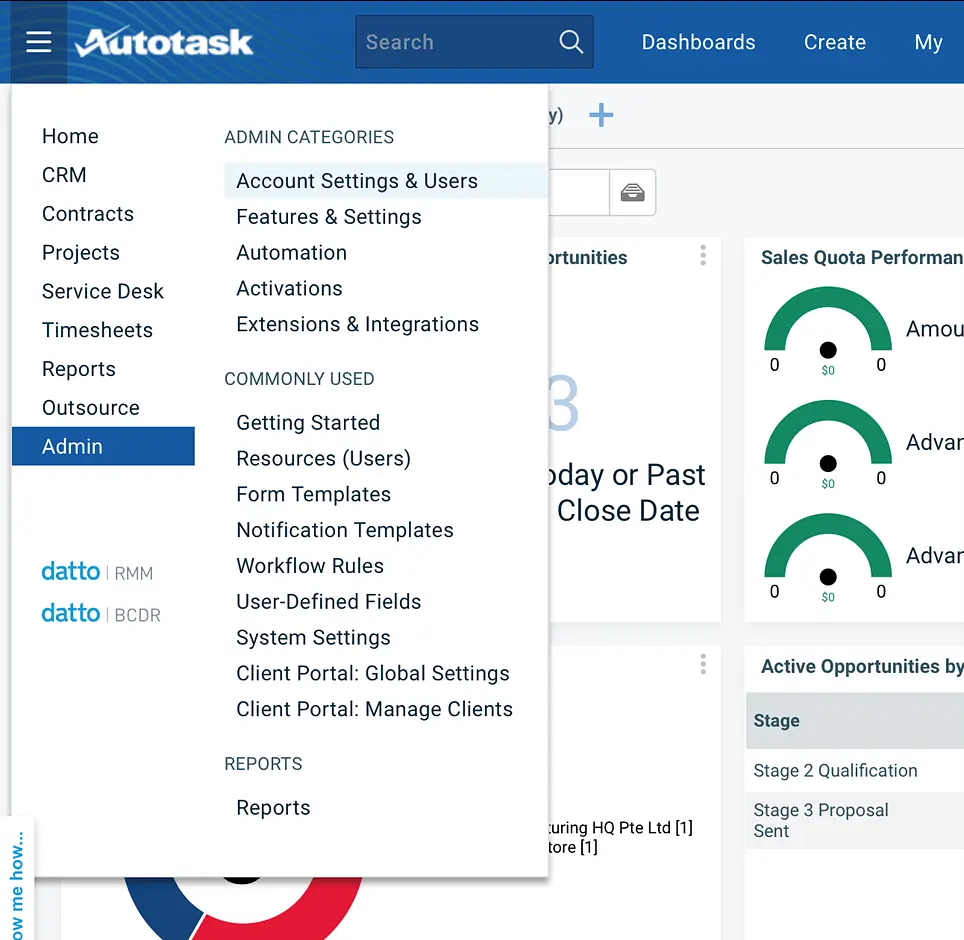
Click Account Setting & Users menu item
Setup Security Levels for our user
Select the Resources/Users (HR) accordion menu
Click the Security Levels item in the Security section
Hover over the list icon next to the API User (system) (API-only) security level, and click Copy
Hover over the list icon next to the copied security level, and click edit.
Rename the security level to a recognisable name.
-
Ensure the following permissions are set. This is the minimal set required for BeeCastle to function:
Contracts - Object Permissions - Contracts -> View = All
Contracts - Can access Invoice History, (Invoice) Export Wizard and Payments -> Checked
Contracts - Contact Visibility -> Full
-
CRM - Account & Contact Access - Customer & Cancelation -> All
(For above, Vendors & Partners, Prospects, Leads, & Dead are optional)
CRM - Object Permissions - Opportunities & Quotes -> View = All
CRM - Object Permissions - Opportunities & Quotes -> Add = Yes
Inventory - Object Permissions - Products -> View = All
Service Desk - Object Permissions - Tickets -> View = All
Service Desk - Object Permissions - Charges -> View = All
Admin - Products, Services & Inventory -> Checked
Admin - Resources / Users (HR) -> Checked
Other - Resources / Users (HR) - Can view Internal Cost section on New/Edit Resource page -> Checked
Other - Webhooks - Can Create Webhooks -> Checked
Other - Webhooks - Maximum number of Webhooks -> 20
Other - Miscellaneous - Can view internal cost data -> Checked
Navigate to Users Page
Select the Resources/Users (HR) accordion menu
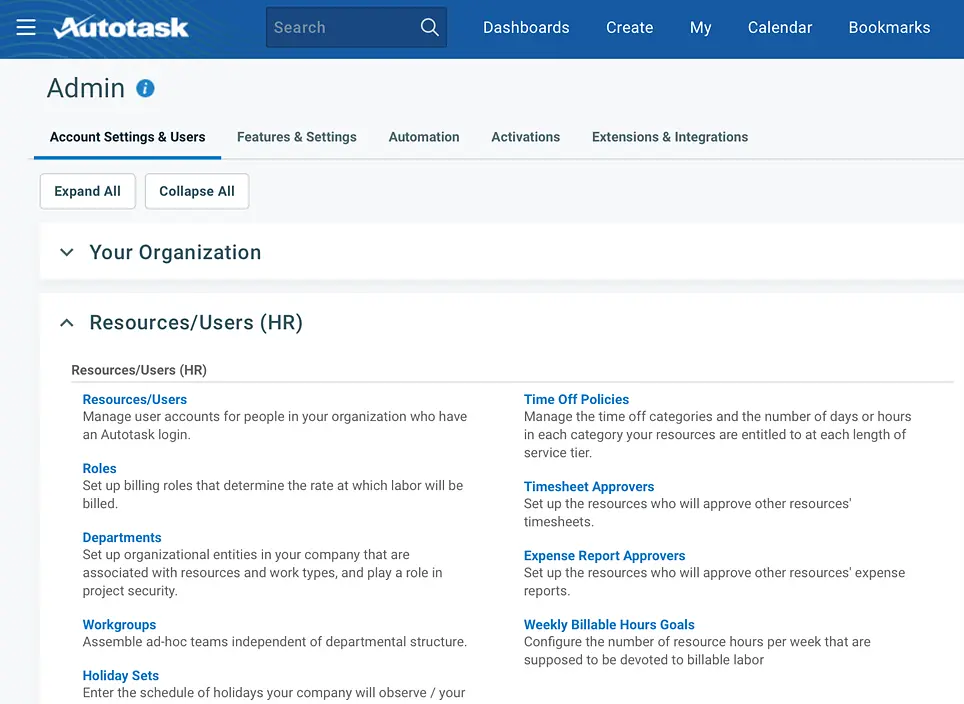
Click the Resources/Users menu item
Initiate new user addition
Click the dropdown arrow next to + New
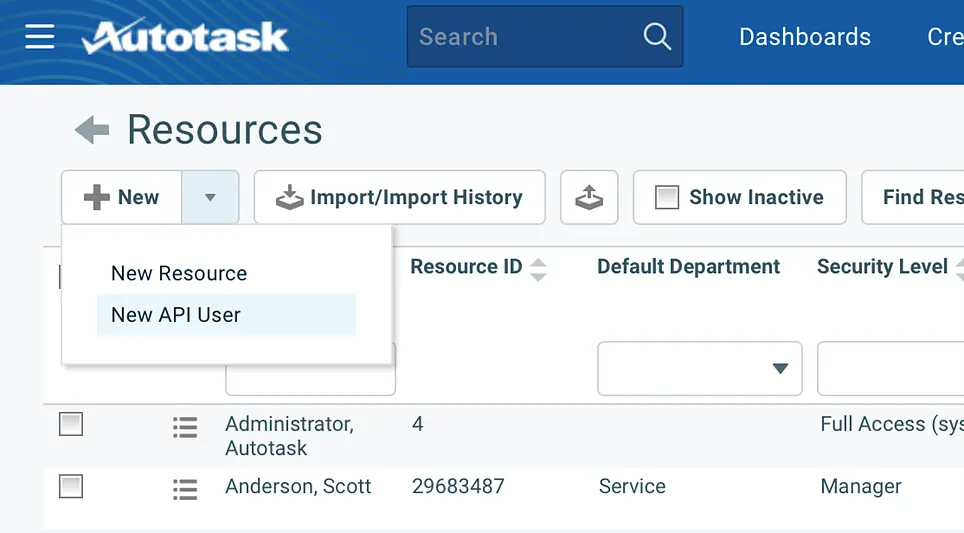
Click New API User
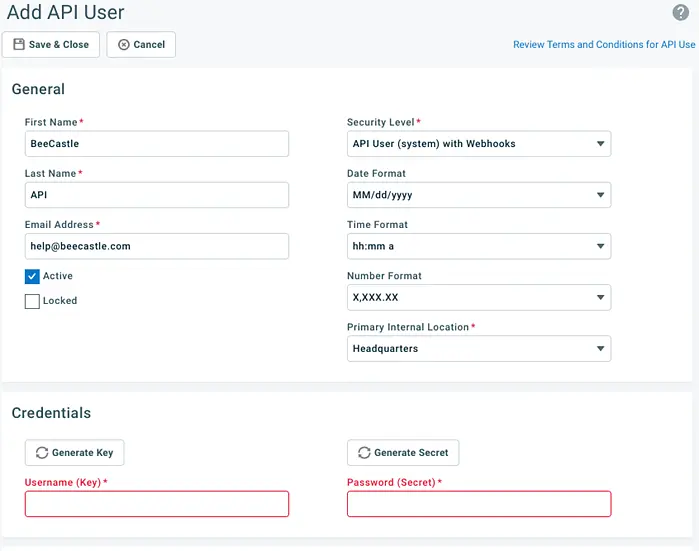
Fill in API user details
Fill out the following fields
Firstname: BeeCastle
Last name: API
Security Level: <Select the security level created earlier>
Primary Internal Location: <depends on customer system>
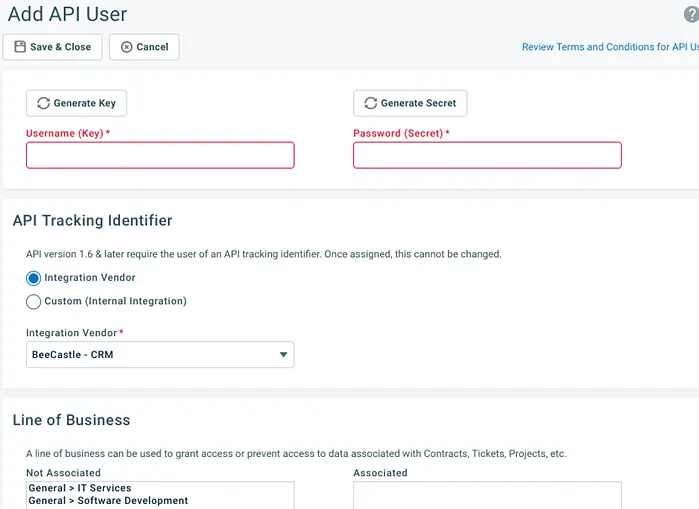
Click Generate Key - this value needs to go back to the BeeCastle Team
Click Generate Secret - this value needs to go back to the BeeCastle Team
-
API Tracking Identifier - You may be able to choose “Integration Vendor” and select “BeeCastle - CRM” from the dropdown list.
If “BeeCastle - CRM” is not available please choose “Custom (Internal Integration)” and enter “BeeCastle” in the Internal Integration Name. Keep the generated Tracking Identifier to send to the BeeCastle Team.
Click Save & Close
Send fields back to BeeCastle Team
Get in touch with your account manager and send them the Key and Secret values, and if you chose “Custom (Internal Integration)” also the Tracking Identifier.
Turn on real-time updates (webhooks)
Once BeeCastle is connected and has synced, Autotask can send changes to companies, contacts and tickets to BeeCastle as they happen. BeeCastle creates and manages these webhooks for you. Opportunities, contracts and invoices keep updating on the regular sync, because Autotask has no webhook for them.
Check the security level created above has Other - Webhooks - Can Create Webhooks checked, with a maximum of at least 3.
In BeeCastle, go to Settings -> Integrations -> Autotask.
Under Real-time updates, switch on Enable webhooks.
BeeCastle creates a Company, Contact and Ticket webhook in Autotask and shows the status of each. Click Check at any time to confirm they are still in place.
Switching Enable webhooks off removes the webhooks BeeCastle created. Webhooks created by anyone else are never touched.
If BeeCastle reports that the Autotask API user cannot create webhooks, tick Can Create Webhooks on its security level, set a maximum, and switch Enable webhooks on again.
Was this article helpful?